LED Bar Tool
 An LED Bar Tool object shows a value in relation to segments. This tool can be used only with analog points. The range is defined by the PositionMin and PositionMax properties of the object. The illuminated segments are set by the Position property. In Edit mode, you can assign a default value to this property. If the object is associated with a point, the default value is replaced in Run mode by the actual value of the point.
|
LED Bar Tool |
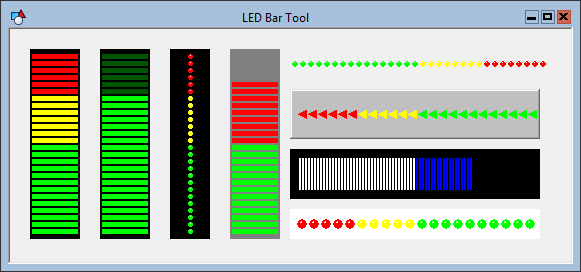
To associate the object with a point use the point identifier properties to form a fully qualified CygNet tag string. The point identifier properties are [1:SiteService], [2:Point ID], [3:Long Point ID], [4:Facility ID], and [5:UDC]. If the object is on a templated screen, only use the [5:UDC] property.
The bar can have up to 3 sections. SectionCount defines the number of sections, and the SectionColor properties define the color of each section. The SectionEnd properties define the ending value for each section. The SegmentDirection property determines the fill direction. If set to Up or Down, the boundary of the object must be vertical. If set to Left or Right, the boundary must be horizontal.
The shape of the segments is specified by the SegmentStyle property. Options are Rectangle, Circle, and Triangle. By default, the non-illuminated segments are shown. If ShowOffSegments is set to No, the non-illuminated segments are not shown.
The [AlarmElement] property can be set to show the point state color in the object’s Background Color or not at all (None). When set to None, the color specified for each component is shown. If set to Background Color, the component color is replaced with the point state color.
The [UseCustomStateColors] property enables the object to use its own custom point state colors. If set to 1 - Yes, the colors used are those defined by the object’s [CustomStateColors] property. If set to 0 - No, the colors are those defined by the TheView’s [CustomStateColors] property.
CygNet Studio also has the following similar tools:

|
Arrow LED Tool, which displays an arrow-shaped LED object that indicates a status by color. |

|
Diamond LED Tool, which displays an diamond-shaped LED object that indicates a status by color. |

|
LED Switch Tool, which displays an LED object used as a toggle for digital commands. |

|
Round LED Tool, which displays a round object that indicates a status by illuminating the LED. |
More:
 LED Bar Tool - Properties, Events, and Methods

